




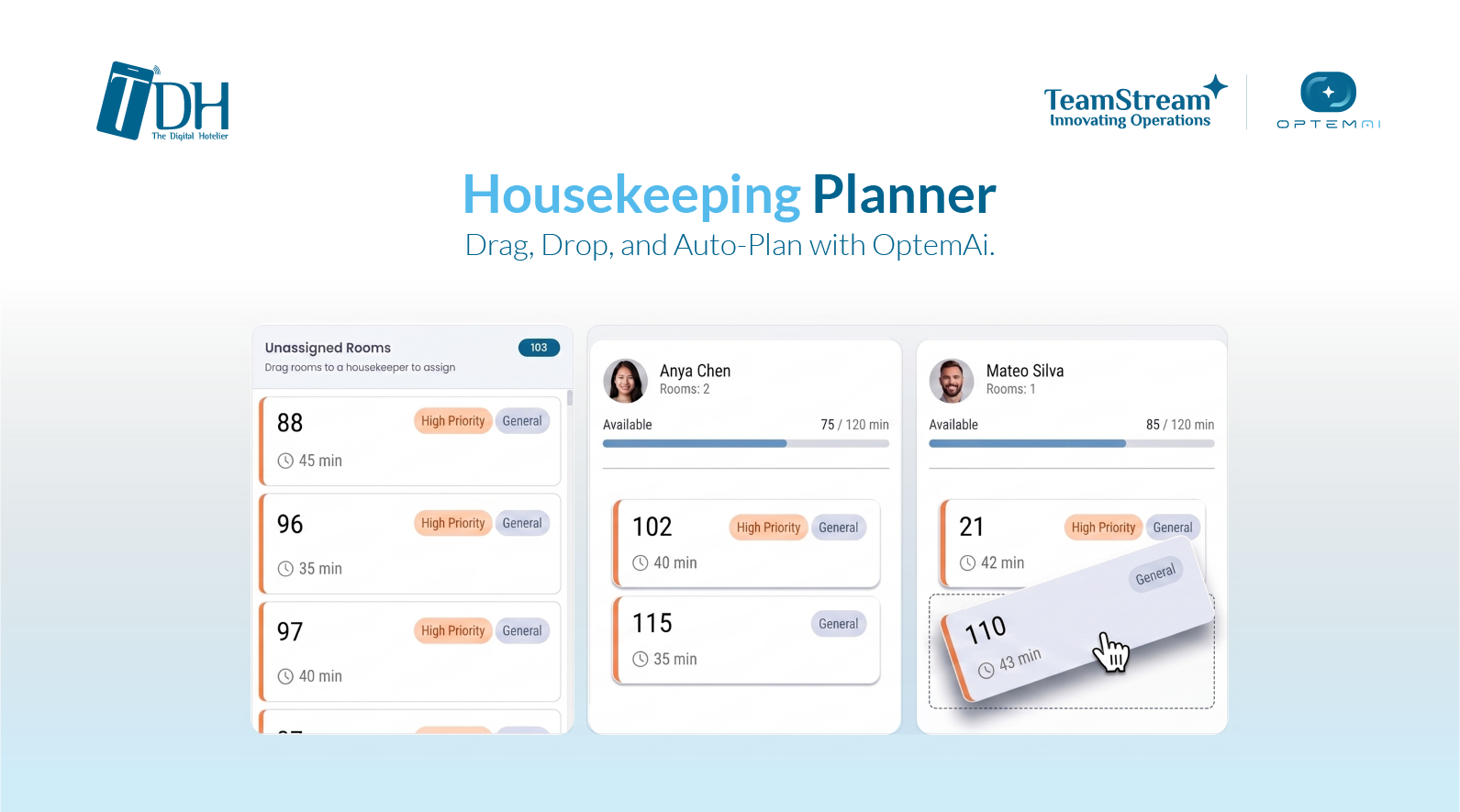
6:45 AM. The housekeeping office.
The shift supervisor walks in, opens a spreadsheet, and starts assigning rooms by hand. Ten minutes in, someone texts to say they are not coming in. Three rooms need to move. Two housekeepers end up covering the same floor. Another floor has no one. By 9 AM, the front desk has rooms it cannot release because no one has been there yet.
This is a familiar morning for a lot of hotel housekeeping teams. Not because the supervisors are disorganized. Because the tools were never built for the job.
Until now.
The Housekeeping Planner is live inside TeamStream+. Build the full shift visually, track live workload across the team, and surface priority rooms in one tap. Or let OptemAi auto-schedule the day in seconds.
The Planning Board
The Planner opens to a full view of the shift.
Live metrics at the top track rooms assigned, rooms still waiting, active housekeepers, and total estimated cleaning time. The board below is where the work happens.
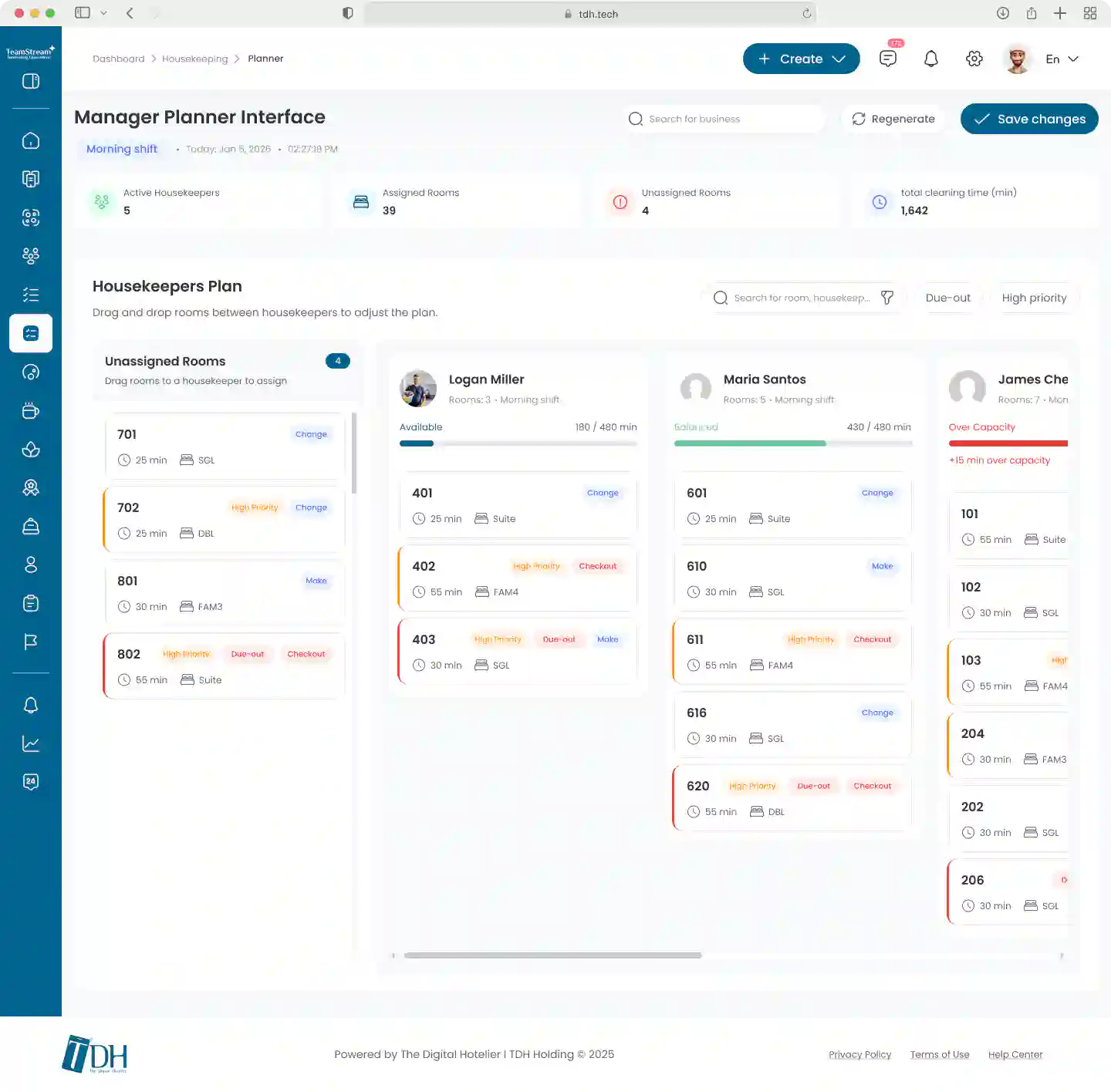
The Planner opens to a full view of the shift.
How the Planner Works
Drag-and-Drop Assignment
Drag any room from the Unassigned column onto a housekeeper’s card. The capacity bar updates immediately.
Each room card shows the estimated cleaning time, room type, and cleaning type. A Checkout takes longer than a Make. A Suite takes longer than a Single. Every assignment reflects the actual workload, not a flat average.
Reassigning mid-shift works the same way: move a card between housekeepers without opening a separate screen.
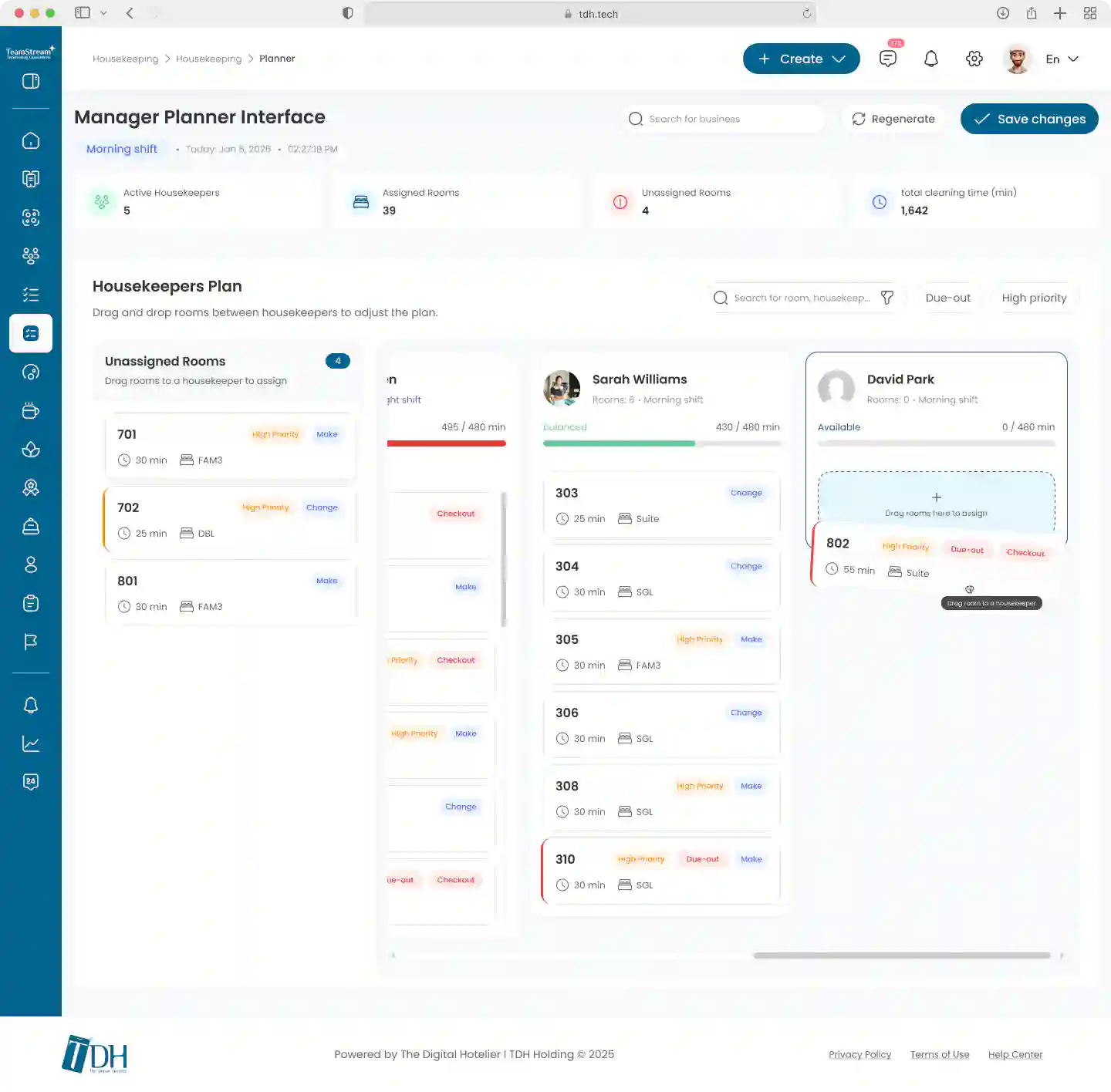
Drag any room from the Unassigned column onto a housekeeper’s card.
Priority Filters
Two filters sit above the board. Due-out shows only checkout rooms across all housekeepers and the unassigned column. High Priority surfaces VIP and escalated rooms.
Both filters run at the same time. The advanced filter panel adds control by shift, room type (SGL, DBL, FAM3, FAM4, Suite), cleaning type (Make, Change, Checkout), or a specific housekeeper by name.
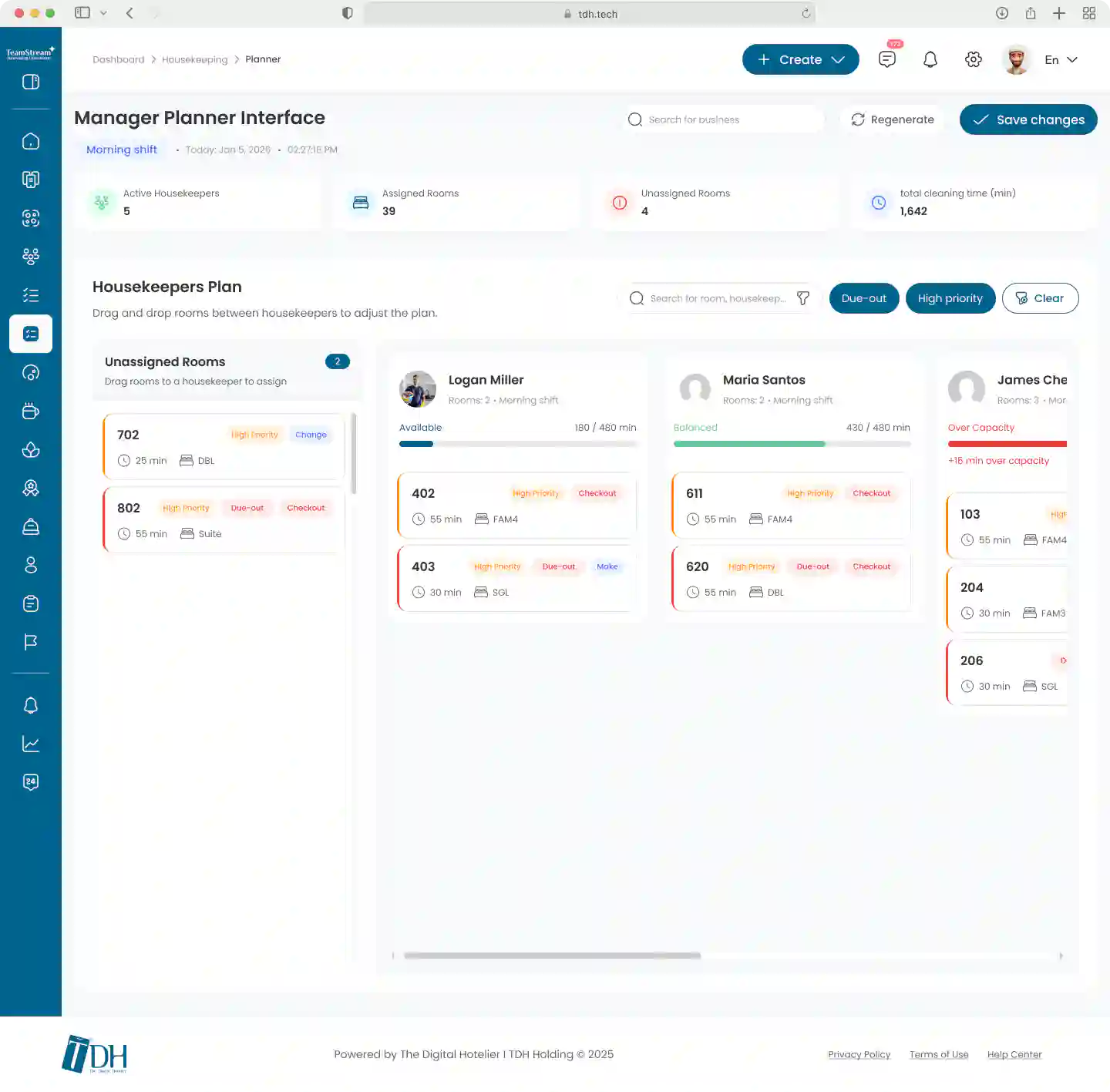
Due-out and High Priority filters surface those rooms instantly.
Live Capacity Tracking
Every capacity bar shows one of three states: blue when available capacity remains, green when the load is balanced, and red when over capacity, with the exact overage in minutes.
Supervisors see the full picture across the team before the shift starts, not after someone is already two floors behind.
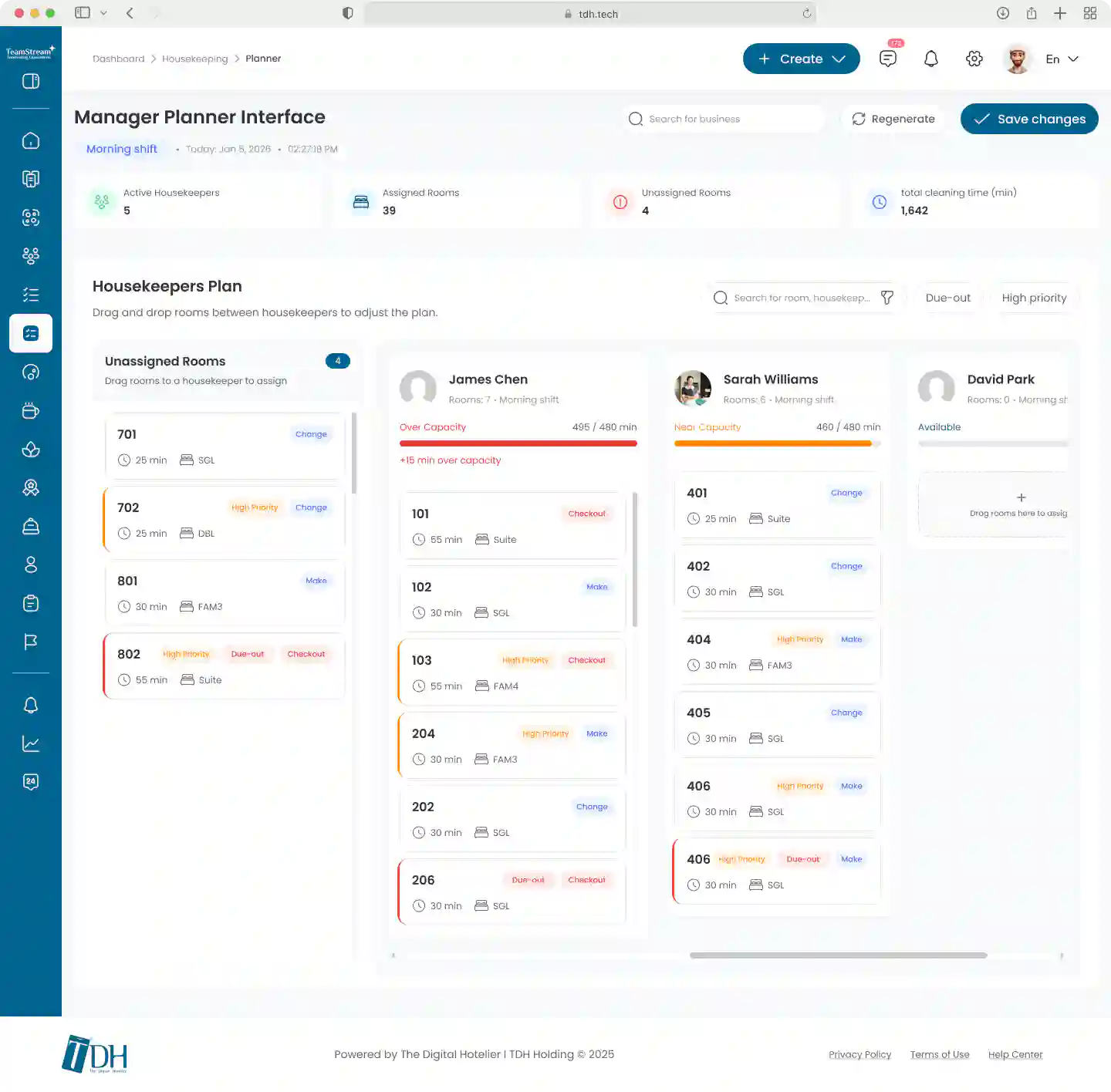
Live capacity bars show exactly when a housekeeper is over capacity.
OptemAi Auto-Planning
OptemAi is TeamStream+’s built-in AI operations assistant. In the Planner, it reads the full shift: active housekeepers, available capacity, room types, cleaning types, and priority flags. Then it builds a complete, balanced plan automatically.
Hit the Regenerate button. The plan rebuilds.
Due-out rooms go to separate housekeepers and sit at the top of each person’s list, so the rooms blocking check-in release in parallel rather than one after another. Service areas carry the same weight as guest rooms in the capacity calculation.
The supervisor reviews the output, adjusts anything manually, and saves.
If a housekeeper calls in sick mid-shift, remove them from the active shift and hit Regenerate. The plan rebuilds around whoever remains.
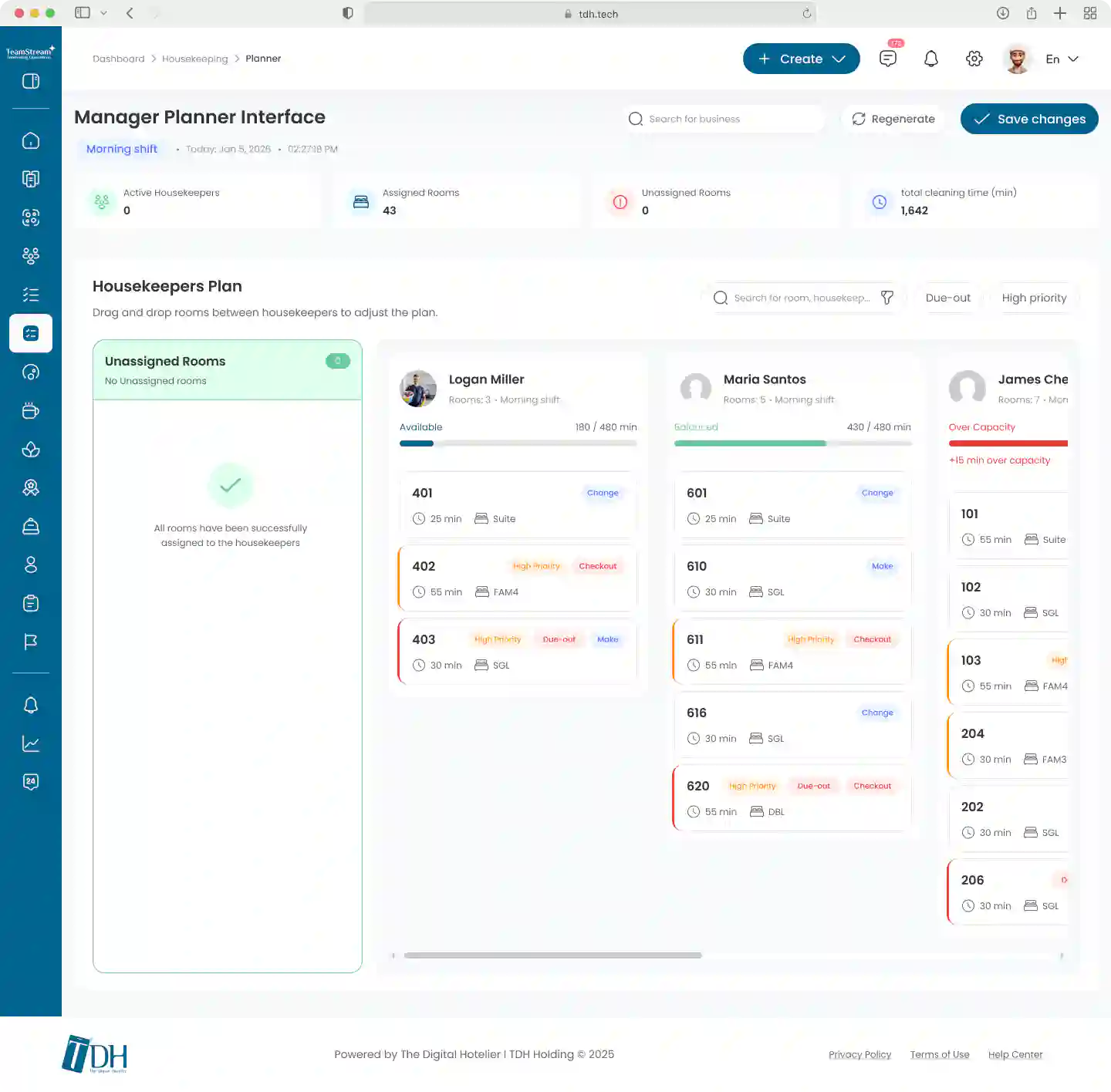
OptemAi generates a complete, balanced plan in seconds, or you can assign all rooms manually.
What Changes for Your Team
| Process | Without the Planner | With the Housekeeping Planner |
| Building the shift plan | Rooms assigned one by one from a task list | Full shift mapped visually via drag-and-drop |
| Due-out and priority rooms | No dedicated filter during assignment | Due-out and High Priority filters surface them instantly |
| Workload per housekeeper | No load overview during assignment | Live capacity bar per housekeeper, updated with each room |
| Mid-shift changes | Re-assign through the task list | Drag a room card between housekeepers |
| Absent staff | Manual replanning from scratch | Remove from active shift, hit Regenerate, OptemAi rebuilds the plan |
| AI-assisted shift planning | Not available | OptemAi generates a complete, capacity-balanced plan in seconds |
How the Planner Fits with Room Overview
The Housekeeping Planner and Room Overview do different jobs.
Room Overview is the live status board for the full property: every room’s current condition, visible in real time, readable by the front desk for check-in releases.
The Planner sits upstream. It is where the shift gets structured before work starts.
Once the shift is running, Room Overview takes over.
Start Building Your First Shift
Log in to your dashboard and navigate to Housekeeping, then Housekeeping Planner, to set up your first structured shift.
Questions or need help? Contact your account manager or email [email protected].
New to TDH? Book a demo to see the Housekeeping Planner and the full TeamStream+ platform in action.